
Over the last few of updates to Lightroom Classic (LrC) we’ve been given a few different tools to help us take better care of our catalogs over time. This has always been a problem area for many people using Lightroom Classic, so I’m putting together an updated series of posts on catalog management 101.
What is the Catalog?
The catalog file is what sets LrC apart from most other editing tools, including Adobe’s own Camera Raw. The catalog is both one of its greatest strengths and greatest weaknesses. It is a strength in the way it keeps a running database of every photo (and video) you’ve run through the import process, it allows for non-destructive editing by storing all the changes you make as a set of instructions to be applied via output, it allows for searching across hundreds of thousands of files to find what you may be looking for, it allows you to seamlessly move your photos through various different modules (without needing to change file types) as part of your workflow, and so much more. However, it is a file that sits apart from your photos and even though you open it every time you launch LrC, it is kind of invisible, and this disconnect often leads people to frustration, confusion, errors, and slow performance issues.
Where is the Catalog?
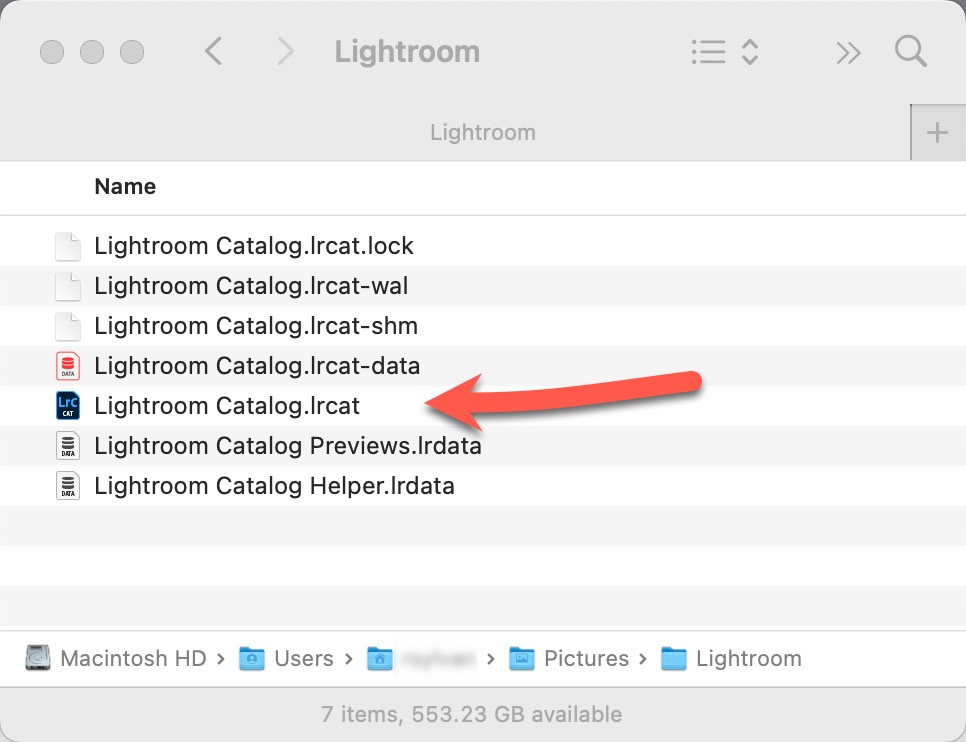
By default, when you install LrC and run it the first time, a folder in your Pictures folder (on your main drive) should be created automatically, and this folder will be named Lightroom. Within that folder, the catalog, with a file extension of .lrcat and a few supporting files will also be created. Both Windows and Mac like to hide file extensions on us, but I think it is helpful to enable the display of file extensions so that we know what file types we are dealing with.
However, you may have chosen to store your catalog in a different location, and that can be on any locally connected hard drive, just not on a network attached storage device, as it is not possible to open a catalog file over a network. The best location for your catalog is typically on your main internal hard drive, as this is often an SSD type drive and will have the best performance. The main caveat is that you also need to ensure you have ample free space on that drive. By ample, I would say that if you don’t already have at least 100GB of free space on your internal drive then you should put your catalog on a fast external drive with lots of capacity.
Over time, your catalog file will grow in size as you import new photos, additionally, the supporting cache files will grow even faster, and as the available free space on your internal drive dwindles your performance will be negatively affected. So, a fast SSD internal drive with lots of free space (several hundred GB of space) will provide the best performance for the catalog, but if your internal drive is small to begin with and you are short on space, a fast external drive with lots of room is the second best choice. There are a few things that can be done to manage the amount of space taken up by the catalog and its supporting files, but it is best to give it room to grow without you having to watch every GB on a daily basis.
To find your catalog, open your operating system’s file browser, navigate to the Pictures folder, and open the folder named Lightroom. If the catalog is currently open in LrC then you will see a few additional helper files (files with a -wal, -shm, or .lock extension) that automatically close when you quit LrC. If there is not a Lightroom folder in your Pictures folder, then another way to find your catalog is to open LrC, then go to Lightroom Classic > Catalog Settings (PC: Edit > Catalog Settings), and look at the General tab, where you will see the location of that catalog file. Click the Show button to open your file browser to that location.
Set the Default Catalog
Now that you know where your catalog file is located, and assuming that is the catalog you use most often (or the only catalog you use), take a moment to set it as the default. That means no matter what catalog you may have had open previously, when you quit and open LrC again this specific catalog file will always open. The reason for manually changing this setting is that “out of the box” Lightroom Classic is configured to open the most recent catalog used (meaning the one you had open the last time you quit the program). This is fine most of the time for people who only have a single catalog, but there are instances where you may have had a different catalog open for any number of good reasons, and then you forget, and then you quit, and then the next time you launch LrC that other catalog opens and you may not realize it. This is the cause of a lot of confusion and frustration. If you set a specific catalog as the default then you always know which catalog will open no matter what.
Go to Lightroom Classic > Preferences (PC: Edit > Preferences) and look for the Default Catalog drop-down menu on the General tab. Click the drop-down menu and choose the specific catalog file currently open instead of the default Load most recent.
So that’s catalog basics 101. Hopefully this gives you a good foundation. Next we’ll look at how to move, rename, and backup this critically important file. Please post any questions you may have.
The post Tools for Your Catalog appeared first on Lightroom Killer Tips.